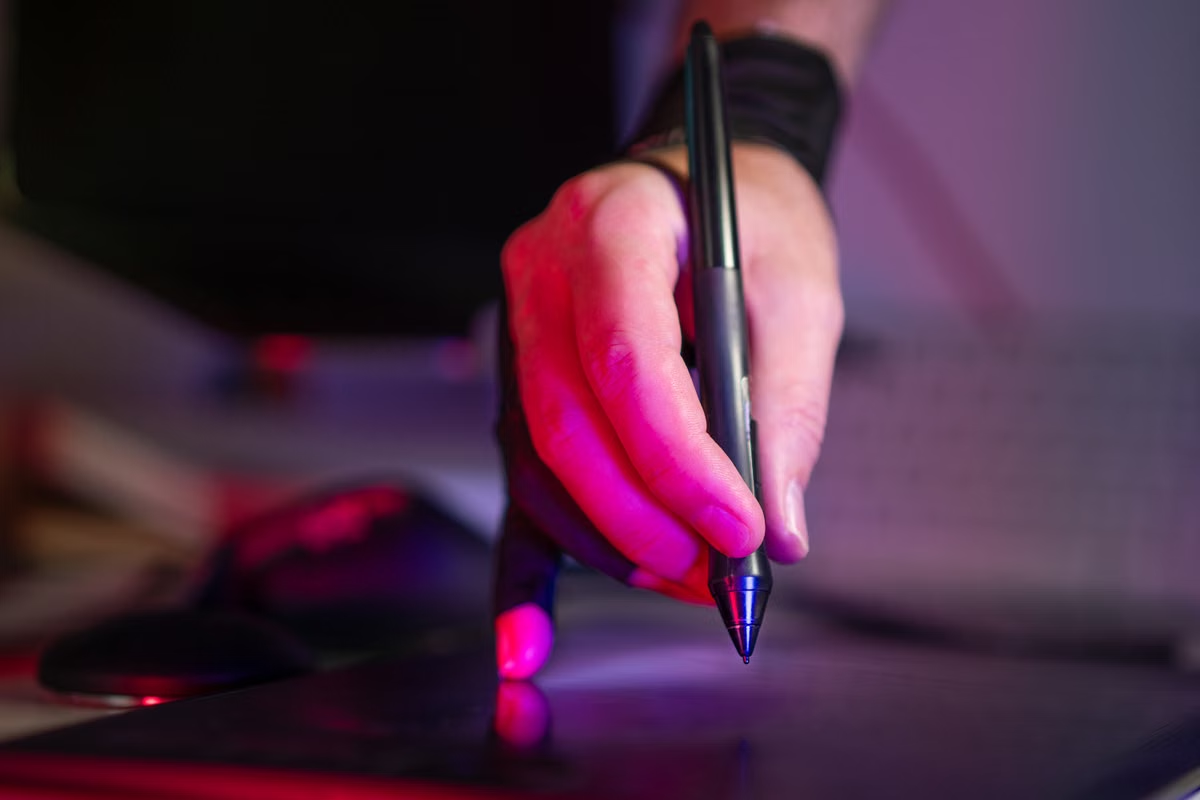
A Photoshop file opens, but a missing font or tablet issue could still derail a client deadline.
Verdict: Adobe lists Photoshop 27.x as compatible with macOS 27, so the app itself has an official compatibility confirmation. Test the full workflow on a spare or isolated Mac first; if a critical plugin or device remains unverified, hold off upgrading the Mac used for active projects.
This guide is for Photoshop users preparing to upgrade a main work Mac and designers or photographers who rely on specific fonts, plugins, or a drawing tablet. Small creative teams can also use the test sequence to plan an upgrade across several Macs.
Last updated October 15, 2026. Adobe’s compatibility listing and Apple’s macOS upgrade information were checked for this article. See Adobe’s macOS application compatibility table and Apple’s macOS upgrade guidance.
2026 macOS 27 Photoshop compatibility: app support is only the first gate
Adobe’s compatibility table confirms Photoshop 27.x compatibility with macOS 27. The listing was updated on October 1, 2026, so this is a specific application-level confirmation—not proof that every part of a production workflow has been tested. Check the current Adobe compatibility listing when planning an upgrade, since Adobe may update it.
That distinction matters when a project depends on tools beyond Photoshop. A font manager may behave differently from the fonts themselves; a plugin may have its own installation or licensing requirements; and a tablet relies on its own software and device settings. A successful Photoshop launch cannot verify those dependencies or confirm that an exported file meets a client’s handoff requirements.
| Upgrade path | What it can verify | What it cannot establish | Decision |
|---|---|---|---|
| Upgrade the main Mac immediately | Whether Photoshop launches on the upgraded system | Whether the working project, plugins, fonts, tablet, and delivery process all work | Avoid for deadline-critical work if key dependencies are untested |
| Test on a spare or isolated Mac | Whether a project copy completes the actual workflow in the target environment | Whether every other Mac or team setup will behave identically | Preferred when the test Mac has macOS 27 and the required tools |
| Keep the current system for now | Preserves the known working environment | Whether macOS 27 will suit the workflow later | Sensible when there is no safe test environment or a critical tool lacks confirmation |
The table is a decision aid, not a guarantee. A test environment only answers the questions that are actually tested. If it does not include the same plugin, tablet, font manager, or export settings, it cannot clear those items for the main Mac.
Start with a project copy, not a blank document
An empty document can confirm that Photoshop opens. It cannot tell whether a layered client file, linked assets, or a particular document setup still works. Choose a copy of a representative project instead: one that includes the tools and file types used in routine work, without exposing or overwriting the only production original.
Keep the original untouched and make a separate test copy. If the file is confidential, check the organization’s handling rules before placing it in any environment outside the usual workstation. The xcodeops data privacy information can help you review service-related data handling, but it does not replace your client agreement or workplace policy.
Work through the following sequence in the test environment:
- Open Photoshop and confirm that the expected workspace and panels load.
- Open the copied project and inspect the document, layers, text, and linked or placed assets.
- Make a small, reversible edit using the tools normally used for that job.
- Save the copy, close it, and reopen it to check that the edit persisted.
- Export a test deliverable using the project’s usual settings.
- Open the exported file separately and compare it with the project and the existing delivery specification.
Record what worked and what did not. Include the project copy used, the tool involved, any warning shown, and whether the issue can be reproduced. That gives a designer or support contact something concrete to investigate; “Photoshop seemed fine” does not.
Text and layout need a visual comparison
A layout may open while silently substituting a missing font. That can change line breaks, spacing, or text fit without stopping the application from running. Adobe explains how Photoshop identifies and handles missing fonts in its guide to replacing missing fonts.
Use a copy of a real design that contains the fonts most likely to matter for current work. Check for missing-font notices, then compare headings, line endings, text boxes, and spacing against a reference image or the known-good file. Do not accept a substitution simply because the document remains editable; a near-match can still change the approved layout.
Also check the font setup as a whole. A typeface installed directly on the Mac, one activated through a font management tool, and one provided through a team workflow may have different requirements. If a font is missing, record its name and how it is normally made available before troubleshooting. That helps distinguish a system upgrade issue from an activation, license, or access issue.
For a handoff file, inspect the version received by the intended collaborator or the team’s normal review setup when possible. A local preview alone does not prove the recipient’s environment will render the same text. Keep screenshots or other agreed review evidence alongside the test notes, especially when a layout change could affect approval.
Plugins and tablets are separate compatibility checks
Photoshop compatibility does not automatically certify third-party plugins. Adobe provides guidance for installing plugins on Apple silicon Macs and a separate Photoshop plugin troubleshooting guide. Use the relevant instructions for the Mac and plugin involved, then check the plugin developer’s own macOS 27 support information. If that information is absent, mark the plugin as unverified rather than assuming it works.
Test plugins in the order they are used in an ordinary job. Confirm that each one appears where expected, accepts its license, runs on the copied project, and produces an output that can be reviewed. A plugin that installs successfully may still fail when it processes a specific file or works alongside another tool.
A tablet is another independent part of the workflow. Connect the device and test the actions that matter in normal editing: drawing a stroke, using pressure if the work depends on it, and checking any buttons or shortcuts used routinely. If the tablet software or driver has no clear compatibility statement for macOS 27, do not treat successful mouse input as proof that the tablet is ready.
Keep a short list of dependencies with a status for each:
- Verified: tested on the target system with a representative project.
- Needs follow-up: the basic check passed, but a real project or output still needs review.
- Unverified: vendor guidance is unavailable, installation failed, or the test could not be completed.
This is more useful than a single “compatible” label. It shows what is safe to rely on and which gap could affect a deadline.
Export and delivery decide whether the workflow is ready
A project that looks correct inside Photoshop still needs a delivery check. Export the project copy using the formats and settings required for the actual job, then inspect the resulting files in the receiving or review environment. Compare appearance, text, layout, and any required color handling with the existing delivery specification.
For color-managed work, preserve the project’s established color workflow rather than changing settings just to make a test file look acceptable. Adobe explains how to embed color profiles. If the job involves print, a defined color profile, or externally supplied assets, include those requirements in the test and have the output reviewed through the same process used for delivery.
Treat a file that opens successfully as a starting point, not a sign-off. The receiving application, review display, print process, or collaborator’s setup may reveal a mismatch that was not visible in the editing session. If the client’s delivery specification is unclear, resolve that question before upgrading the only Mac available for the job.
Decide whether to upgrade, wait, or test again
Use the results of the project-copy test to make a practical call:
- Upgrade the main Mac when the representative project opens, saves, and exports as expected, and the fonts, plugins, tablet, and handoff checks relevant to active work are verified.
- Wait when an essential plugin or device has no useful compatibility information, the test produced an unresolved issue, or there is no safe way to test before a deadline.
- Test again when the application works but a specific part of the workflow was not covered. Add the missing font, plugin, device, or delivery step rather than repeating only the launch check.
If a test fails, note the exact stage. A font warning calls for a different follow-up from a plugin that will not load or a tablet that loses pressure input. Retest after resolving the specific dependency, using a fresh project copy where practical. Do not use a successful test of one project to approve every kind of work performed on the Mac.
This approach also makes team upgrades easier to manage. Each person can identify the tools and files that matter to their work, while the team can hold back machines used for deadlines until the relevant checks are complete. For a broader upgrade planning process, review the xcodeops guides.
Frequently asked questions
Does Photoshop 27 run on macOS 27?
Adobe lists Photoshop 27.x as compatible with macOS 27. That confirms the application pairing, not every plugin, font manager, tablet driver, or client handoff. Test a copy of a real project and the tools it depends on before upgrading a Mac used for paid work.
What should be checked before updating Photoshop plugins?
Check the plugin developer’s macOS 27 compatibility notes and Adobe’s installation or troubleshooting guidance. Then test the plugin in a target-system environment with a project copy, including its license and the operation used in everyday work. If the developer has not confirmed support, keep the plugin marked as unverified.
How can fonts and a tablet be tested?
Open a copied layout that uses the fonts needed for current work. Look for missing-font notices and compare text flow with the known-good version. Connect the tablet and test the input features used on real projects. Record any issue against the specific font setup, tablet software, or driver instead of treating Photoshop’s launch as proof.
What if there is no spare Mac?
Check first whether an available remote or isolated Mac environment actually runs macOS 27. Do not assume a rental system offers that release. Test only project copies, and confirm the available access method and required tools before relying on the environment. If the target system is unavailable, wait or arrange another suitable test environment.
No spare Mac? Make the test environment part of the decision
If the only option is to upgrade the main Mac, the risk is concentrated on the machine that supports active work. Buying another Mac just to test a system release adds a hardware commitment, while postponing every test leaves important dependencies unknown. For a short compatibility check, a temporary remote Mac from xcodeops may be a better fit than either option—but only if its available macOS version and access method meet the test requirements.
Check those details before using any remote environment, and use project copies rather than treating it as a guarantee for production work. If you need to confirm what is available for a test, contact xcodeops before deciding. If the required macOS version is not available, or a key plugin remains unverified, keep the main Mac on its known working setup until the gap is resolved.
Frequently asked questions
Does Photoshop 27 run on macOS 27?
Adobe’s macOS application compatibility table lists Photoshop 27.x as compatible with macOS 27. That confirms the application-level pairing, not every font manager, plugin, tablet driver, or client handoff process. Before upgrading a Mac used for paid work, open and save a copy of a real project and test the tools that project depends on.
How should I check Photoshop plugins before upgrading macOS?
Make a list of plugins used in active projects, then check each developer’s compatibility notes for macOS 27 and your Mac’s chip. In a test environment, install or enable them using the documented method, verify licensing, and open a project that actually uses each plugin. Treat any plugin without a clear compatibility statement as unverified.
How do I test fonts and a drawing tablet with Photoshop on macOS 27?
Open a copy of a layout that uses your usual fonts and inspect for missing-font warnings, substitutions, and changed line breaks. Then connect the tablet you use for paid work and test pressure, buttons, and the normal brush workflow. Record the exact font manager, tablet software, and driver versions so you can isolate a failure instead of blaming macOS alone.
Can I test my design workflow without a spare Mac?
First check whether an available remote or otherwise isolated Mac environment actually offers macOS 27. Do not assume a rental Mac has that release. Use only project copies, confirm how you can access the environment, and test your critical dependencies before changing your main machine. If the required system version is unavailable, postpone the upgrade or arrange another test Mac.
Test Your Design Workflow on a Dedicated Mac
Rent a dedicated physical Mac mini from xcodeops to check your workflow before changing your everyday workstation.