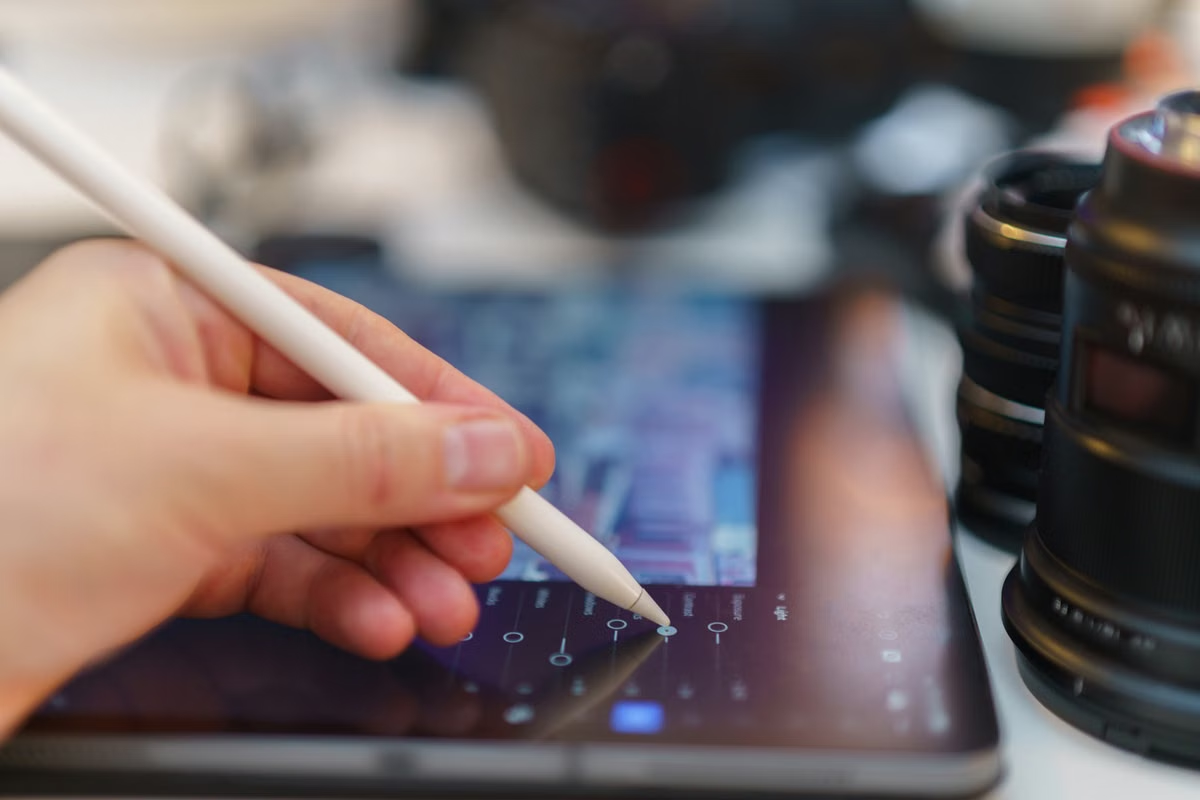
Choose the iPad if it meets Apple’s current requirements and your work is mainly touch-based image editing; test a remote Mac if you depend on the Mac version, desktop steps, or handoffs to Mac apps. A Windows PC does not natively run the Mac version of Pixelmator Pro, but that alone is not a reason to choose remote access.
This guide is for Windows designers checking whether Pixelmator Pro 4.4 fits a real project.
It also helps iPad owners decide whether they need a Mac workflow, and freelancers or small teams validate handoffs before changing tools.
Last updated October 23, 2026. Release and platform details checked against Apple’s Pixelmator Pro 4.4 release notes, Apple Creator Studio support information, and Apple’s Pixelmator Pro product page.
Pixelmator Pro 4.4: remote Mac or iPad by workflow
Apple’s release notes say Pixelmator Pro 4.4 was released on September 29, 2026. Apple publishes platform-specific information for Mac and iPad, so the practical choice is not “which device runs the exact same app?” Instead, decide which version supports the work you need to complete and whether the resulting file can move cleanly to the next person.
The official materials are useful for confirming availability and system requirements. They do not establish that the Mac and iPad versions have identical tools, controls, or behavior. Nor do they prove that a remote desktop will feel like a locally connected Mac. Those are project-level questions, and they need a project-level test.
| Route | Better fit when | Check before committing |
|---|---|---|
| Pixelmator Pro for iPad | You already have an eligible iPad and your edits suit touch input | Current iPadOS and device requirements, editing steps, export, and recipient review |
| Pixelmator Pro on a remote Mac | The job requires the Mac version or a desktop-based handoff | Available macOS and app version, remote input, project access, and delivery path |
| Keep the current workflow | Neither route passes the project test, or the migration adds risk without solving a real problem | Whether another tool or an existing team device can complete the job |
Apple’s release notes for version 4.4 confirm the release date, while its product page describes the available Apple-platform versions. Use Apple’s current requirements pages before installing; do not infer eligibility from a device’s age or from a colleague’s setup.
If you only have a Windows computer
A Windows PC cannot natively launch the Mac version of Pixelmator Pro. Apple’s product and support information describes Mac and iPad availability, not a native Windows release. That distinction matters: a Windows designer looking for a direct Windows installation should not plan around an unverified compatibility method.
There are still two reasonable paths. If an eligible iPad is already available, check whether the iPad app can handle the actual work. If there is no suitable iPad and a client or team requires Pixelmator Pro, assess access to a Mac environment. A remote Mac is one possible route, but only if its version, controls, files, and delivery process satisfy the project.
Do not rent or buy a Mac just because Windows cannot run the Mac app; first confirm that the project really needs the Mac workflow.
For example, a designer may receive a layered image, make a set of routine adjustments, and export a finished graphic for review. If those edits and the required export work in the iPad version, adding a remote desktop can introduce extra access and file-transfer steps without solving a problem. If the project instead depends on a Mac-only stage or a desktop handoff, test that stage in the Mac environment before deciding.
Avoid treating a browser-based interface, file conversion, or a compatibility layer as proof that the complete workflow is supported. The decision should follow the application’s official platform information and the result of opening, editing, saving, and reviewing the same working file.
If you already have an iPad
Pixelmator Pro for iPad may be the simplest route when the iPad meets Apple’s published requirements and your regular work is comfortable with touch controls. That can include photo adjustments, drawing, and layer editing, but the task names alone do not prove that every project is suitable. The test is whether the specific tools and file handling needed for delivery are available in your setup.
Apple’s Pixelmator Pro for iPad guide is a useful reference for the iPad workflow. The guide is labeled for iPadOS 26; check Apple’s current support information for the precise device and software requirements rather than assuming that the guide label guarantees compatibility with every iPad.
Try a representative file that includes the kinds of elements you actually receive: layered artwork, text, masks, embedded or linked assets, and the output format your client expects. Then compare the editing sequence with your usual process. If an essential control is awkward to reach or a required operation is unavailable, the iPad may still be useful for review or partial edits, but it may not be the right device for completing that project.
For export, follow Apple’s iPad document and image export guidance. Export settings are part of the deliverable, not a final detail to assume will match your desktop process. Open the exported result on the receiving device and confirm that it can be reviewed as intended.
Check the handoff, not just the canvas. A project that looks correct on the iPad can still fail the job if the recipient cannot open the saved file, inspect the layers they need, or produce the expected final export.
If your work depends on a Mac desktop process
A remote Mac is worth testing when the project needs the Mac version, a desktop step, or a transition into another Mac application. It is not automatically the right answer for every designer using Windows. Remote access adds its own dependencies: the host must have a suitable macOS and app version, the connection and input method must work for the task, and the project files must be available through a controlled handoff.
Before putting client work into a remote workflow, confirm:
- Application availability: Check which macOS and Pixelmator Pro versions are actually available in the proposed environment. Do not assume that a service’s general Mac access means the required app is installed or compatible.
- Project access: Establish where source files, fonts, brushes, and other assets will live. Confirm that the working copy is the intended one and that saving does not create competing versions.
- App-to-app steps: List every application involved in the project. If the workflow includes another Mac app, test opening and saving between the apps instead of assuming the transfer will preserve every detail.
- Remote controls: Test the actions that matter: selecting small interface elements, using shortcuts, moving layers, and checking fine visual details. Whether these feel suitable depends on the connection and setup; do not treat an untested remote session as equivalent to local use.
- Delivery and access: Decide how the finished file will reach the client or teammate, who can access the project, and how the team will confirm the delivered copy.
Apple’s Mac guide to opening a document provides a reference for opening documents in the Mac version. Apple also documents continuing projects between iPad and Mac. Those documents support checking cross-device workflows; they do not guarantee that every project element or application handoff will match your needs.
For remote access, the relevant question is not whether a desktop can appear on screen. It is whether the person doing the work can operate the required tools, reach the correct source files, save a usable project, and give the next person a file they can verify. Review remote Mac workflow guides for environment checks before treating remote access as a production route. If client confidentiality is part of the decision, review the relevant data privacy information as well.
If a team needs reliable handoffs
For a small team, choose the route that makes ownership and file review clear. An iPad may work well when one person can complete the edit and deliver a final export. A Mac desktop process may be more appropriate when another teammate must continue editing in the Mac version or use a connected desktop application. A mixed process can work too, but only if the team agrees where the source of truth lives and who checks the handoff.
Consider a freelance designer who prepares campaign artwork on an iPad while a teammate is responsible for a final desktop adjustment. The crucial question is not simply whether both devices can open a document. The team needs to confirm that the intended file arrives, that required content remains editable for the next person, and that the receiving teammate can inspect and save the result.
Before standardizing the workflow, give the same representative project to the intended editing device and receiving device. Have the editor open it, make a real change, save or export it using the planned method, and have the recipient review that output. Record any missing fonts, changed appearance, flattened content, export mismatch, or extra manual step. If the team cannot agree which file is authoritative, stop before moving active client work.
This test also helps distinguish a capability issue from a process issue. A file may open correctly while the team still lacks a clear naming convention or delivery location. Conversely, a tidy shared folder cannot make an unsupported editing step work. Resolve both kinds of problem before promising a client that the workflow is ready.
Use a project test to make the final choice
Run the check using a file similar to the work that matters most. Do not decide from an app description alone, and do not test only a blank document. The aim is to expose the step most likely to break the delivery.
- Choose iPad first if your device meets Apple’s current requirements, your edits suit touch input, and the exported project passes the receiving person’s review.
- Test a remote Mac if the project needs the Mac version, a desktop operation, or a Mac-app handoff that the iPad route cannot complete.
- Keep the current workflow for now if neither route passes the representative-file test, or if remote access introduces unverified file, control, or delivery problems.
- Re-test before a team rollout if different people edit or receive the file, because one successful solo edit does not validate the handoff.
The test should include four practical stages: confirm the current app and device requirements; open the representative source file; complete an edit the project genuinely needs; and have the recipient open or inspect the saved deliverable. Keep notes on the exact failure rather than writing “the app did not work.” A missing control, incompatible file element, unclear save location, and difficult remote input all point to different fixes.
If a project passes on iPad, there is no need to add a remote Mac just to mirror a desktop setup. If it fails because the Mac desktop process is essential, validate remote access against that specific task. The Apple Creator Studio support page is another place to recheck current official platform information before changing the plan.
FAQ
Can a Windows PC run Pixelmator Pro 4.4 directly?
No. Pixelmator Pro is offered for Apple platforms, and the official product and support pages describe Mac and iPad versions rather than a native Windows edition. A Windows PC can still be part of the workflow: use an eligible iPad for the iPad app, or access a Mac environment remotely when the project depends on the Mac version.
Is the iPad version enough for design work?
It can be enough when your device meets Apple’s current requirements and your work fits the iPad editing model. Test a representative project rather than judging by the app listing: edit the layers you normally touch, export the file, and have the next person open and review it. If a required step is missing, check the Mac workflow.
When should a designer use Pixelmator Pro on a remote Mac?
Consider a remote Mac when the project specifically needs the Mac version, a desktop step, or a handoff to another Mac application. Treat it as a workflow to validate, not a guaranteed substitute for a local Mac. Check the available macOS and app version, input method, file access, and delivery process before moving client work.
Can an iPad Pixelmator Pro project continue in a Mac workflow?
Apple documents ways to open documents and continue projects across its apps, but that alone does not prove that every project element will behave identically in both versions. Test the actual file, including layers, fonts, linked assets, and export settings. Ask the receiving collaborator to open and inspect the saved result before relying on the handoff.
If a Windows-and-iPad workflow already passes the project test, adding a Mac may only add cost and another place to manage files. If the work depends on Mac desktop steps, staying with Windows alone can mean repeated workarounds, incomplete handoffs, or a delay while someone else finishes the Mac-only stage. In that case, a Mac rental from xcodeops is worth evaluating as a temporary test environment—not as an automatic replacement for a Mac that you need full-time or for workflows that require local physical connections. Start by checking the environment and handoff requirements, then decide from the result of your own file test.
Frequently asked questions
Can a Windows PC run Pixelmator Pro 4.4 directly?
No. Pixelmator Pro is offered for Apple platforms, and the official product and support pages describe Mac and iPad versions rather than a native Windows edition. A Windows PC can still be part of the workflow: use an eligible iPad for the iPad app, or access a Mac environment remotely when the project depends on the Mac version.
Is the iPad version enough for design work?
It can be enough when your device meets Apple’s current requirements and your work fits the iPad editing model. Test a representative project rather than judging by the app listing: edit the layers you normally touch, export the file, and have the next person open and review it. If a required step is missing, check the Mac workflow.
When should a designer use Pixelmator Pro on a remote Mac?
Consider a remote Mac when the project specifically needs the Mac version, a desktop step, or a handoff to another Mac application. Treat it as a workflow to validate, not a guaranteed substitute for a local Mac. Check the available macOS and app version, input method, file access, and delivery process before moving client work.
Can an iPad Pixelmator Pro project continue in a Mac workflow?
Apple documents ways to open documents and continue projects across its apps, but that alone does not prove that every project element will behave identically in both versions. Test the actual file, including layers, fonts, linked assets, and export settings. Ask the receiving collaborator to open and inspect the saved result before relying on the handoff.
Further reading
Test Your Design Workflow on a Remote Mac
Rent a dedicated physical Mac mini and test your desktop editing workflow before choosing a longer rental term.